
Quick Answer
The fastest way to use real UI with Cursor AI is to capture the HTML and CSS from a production website using a browser extension, then paste that code directly into Cursor with a specific prompt asking it to refactor, adapt, or rebuild the component. This gives Cursor concrete context instead of abstract requirements, resulting in production-ready code in seconds instead of minutes of back-and-forth refinement.
Why Real UI Matters in Cursor Workflows
Cursor AI excels when it has concrete examples to work from. Instead of describing a navbar or pricing table in words, you show it one. This changes everything.
When you feed Cursor real, working HTML and CSS:
- It understands exact spacing, colors, and interactions
- It can refactor the code to match your stack (React, Vue, Svelte)
- It generates components that are already visually validated
- You skip the "does this look right?" iteration loop
The difference is measurable. A vague prompt like "build me a navbar" takes 3-5 refinement cycles. A prompt with real UI attached takes one.
The Problem with Designing Components From Scratch
Most developers approach component creation backwards. They start with a blank file and either:
- Write from memory ("I think the spacing was 16px")
- Reference a design file that doesn't match production
- Describe the component in prose and hope Cursor interprets it correctly
All three approaches create friction.
Memory is unreliable. Design files drift from reality. Prose is ambiguous.
Real UI is the source of truth. It's already been tested in production, already looks good, and already works across browsers. Why rebuild it from scratch when you can reference it directly?
How to Capture UI for Cursor AI
You need a way to extract clean HTML and CSS from any website. There are two approaches:
Manual method (DevTools):
- Open DevTools (F12)
- Inspect the element
- Copy the HTML from the Elements panel
- Manually search through the Styles panel for all CSS rules
- Paste into a text editor and clean it up
This works but is slow and error-prone, especially for components with nested styles or external stylesheets.
Automated method (Element Armory):
- Install the Element Armory extension
- Click any element on the page
- Get clean, computed HTML + CSS instantly
- Copy to clipboard
The extension handles minified CSS, nested selectors, and computed styles automatically. You get production-ready code in seconds.
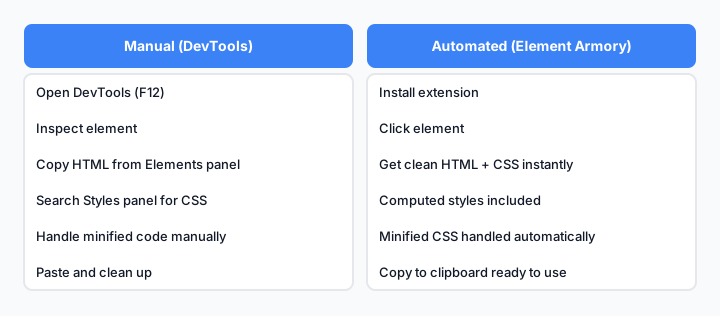
Comparison of manual vs automated UI capture workflows.
Feeding Captured UI Into Cursor Prompts
Once you have the HTML and CSS, the prompt structure matters.
A weak prompt:
"Make this a React component"
A strong prompt:
"I've captured this HTML and CSS from a production website. Convert it to a reusable React component with props for title, items, and onClick handlers. Keep the styling in a CSS module that fits our project. Make it responsive."
The difference:
- You're explicit about the output format (React)
- You specify the styling approach (CSS modules, scoped CSS, or your existing project conventions)
- You define what should be dynamic (props)
- You set constraints (responsive)
Cursor responds with code that's immediately usable, not a rough draft.
Real Example: Navbar Component Workflow
Let's walk through a concrete example.
Step 1: Find a navbar you like
Visit a SaaS site like Stripe, Vercel, or Figma. Find a navbar that matches your design direction.
Step 2: Capture the UI
Use Element Armory to click the navbar and capture its HTML + CSS. You get something like:
<nav class="navbar">
  <div class="navbar-brand">Logo</div>
  <ul class="navbar-menu">
    <li><a href="#">Features</a></li>
    <li><a href="#">Pricing</a></li>
    <li><a href="#">Docs</a></li>
  </ul>
  <button class="navbar-cta">Sign Up</button>
</nav>
With computed CSS for spacing, colors, fonts, and hover states.
Step 3: Paste into Cursor with a specific prompt
I've captured this navbar from a production website.
Convert it to a React component with:
- Logo as a prop
- Menu items as an array prop
- CTA button text as a prop
- Mobile hamburger menu (hidden on desktop)
- Sticky positioning
- Use our existing CSS module conventions

Keep the visual design but make it flexible.
Step 4: Cursor generates the component
You get a functional React component with scoped CSS, mobile responsiveness, and proper prop structure. The captured HTML and CSS give Cursor a concrete baseline instead of a vague visual description.
Step 5: Customize if needed
If you want to adjust colors or spacing, you have a working baseline. Cursor can refine it in seconds.
This entire workflow takes 2-3 minutes. Building from scratch takes 15-20.

The navbar capture-to-component workflow in Cursor.
Cursor Prompts That Work Best With Real UI
Not all prompts are equal when you're working with captured code.
Effective prompts include:
- "Convert this to [framework]" (React, Vue, Svelte)
- "Refactor this to use [styling approach]" (CSS modules, scoped CSS, styled-components)
- "Make this responsive for mobile" (with specific breakpoints)
- "Add these features: [list]" (animations, dark mode, accessibility)
- "Extract this into reusable components" (break monolithic code into smaller pieces)
Weak prompts:
- "Make it better"
- "Improve the design"
- "Fix it"
These are too vague. Cursor doesn't know what "better" means. Be specific about the transformation you want.
The best prompts combine:
- The captured code (context)
- The target format (React, Vue, CSS modules, etc.)
- The specific changes (responsive, dark mode, etc.)
- Any constraints (accessibility, performance, browser support)
Speeding Up Component Reuse With Captured Code
Once you've captured a component, you can reuse it across projects.
Build a personal library:
- Create a folder in your project:
/captured-ui - Save captured HTML + CSS for components you use frequently
- Tag them by type: navbar, card, form, modal, etc.
- When you need a similar component, grab the captured version and feed it to Cursor
This is faster than searching for a component library or rebuilding from memory.
You can also reuse UI components with Cursor by maintaining a reference folder of production-tested code.
Common Mistakes When Using Real UI in Cursor
Mistake 1: Capturing too much
Don't capture the entire page. Isolate the specific component. A navbar should be just the navbar, not the navbar plus hero section plus footer.
Mistake 2: Not cleaning up the HTML
If the captured code has data attributes, tracking pixels, or other cruft, remove it before pasting into Cursor. Clean input = clean output.
Mistake 3: Forgetting to specify the output format
Don't assume Cursor knows you want React. Say it explicitly in the prompt.
Mistake 4: Using captured code without understanding it
You should understand what the code does before shipping it. Cursor is fast, but it's not infallible. Review the output.
Mistake 5: Not testing responsiveness
Just because the original component is responsive doesn't mean Cursor's version will be. Test on mobile before shipping.
Combining Element Armory With Cursor AI
Element Armory is designed specifically for this workflow. It captures clean, computed CSS that Cursor can immediately understand and refactor.
The integration is seamless:
- Install Element Armory
- Click any element on any website
- Copy the HTML + CSS
- Paste into Cursor with your prompt
- Get production-ready code
No manual DevTools hunting. No CSS parsing. No guessing about computed styles.
This is the fastest path from inspiration to implementation.
Best Practices for Production-Ready Output
When you're using captured UI with Cursor, follow these practices to ensure the output is production-ready:
1. Validate accessibility
Ask Cursor to add ARIA labels, semantic HTML, and keyboard navigation. Real UI from production sites may not be fully accessible.
2. Test across browsers
Cursor generates modern code, but test in your target browsers. CSS Grid and Flexbox work everywhere now, but older projects may need fallbacks.
3. Optimize for performance
If the captured component has large images or heavy animations, ask Cursor to optimize them. "Reduce bundle size" and "lazy load images" are good prompts.
4. Match your design system
Don't just copy colors and spacing. Ask Cursor to use your design tokens. "Use our color palette from the design system" is a valid prompt.
5. Document the source
If you're capturing from a competitor or public site, document where it came from. This is good practice for legal and ethical reasons. See copying UI legally for more context.
6. Version control the captured code
Keep the original captured version in a comment or separate file. This helps you track what changed and why.
Comparison: Manual vs Captured UI Workflows
| Aspect | Manual (No Capture) | With Captured UI |
|---|---|---|
| Time to first component | 15-20 min | 2-3 min |
| Refinement cycles | 3-5 | 0-1 |
| Visual accuracy | Depends on memory | Production-tested |
| Responsive design | Often forgotten | Already validated |
| CSS complexity | High (manual parsing) | Low (automated) |
| Reusability | Low | High |
| Learning curve | Steep | Shallow |
Next Steps
Start small. Pick one component from a site you admire. Capture it. Feed it to Cursor with a specific prompt. See how fast you can go from inspiration to working code.
Once you've done it once, you'll see why this workflow is becoming standard for rapid development.
For more on best prompts for UI generation, check out our guide on crafting prompts that Cursor responds to best.
And if you want to explore how to prompt AI for React components specifically, we have a detailed walkthrough.
If your workflow is moving into agentic coding, compare this with using captured UI in Claude Code. If your bottleneck is the capture step, start with copy HTML without Inspect Element or DevTools alternatives.
The future of component development isn't designing from scratch. It's capturing what works, refining it with AI, and shipping it fast.