
Quick Answer
The best UI capture tool for developers depends on your workflow. If you need clean, reusable HTML and CSS code for components, Element Armory is the fastest option-it captures computed styles and structure in seconds. If you're building design systems or need visual collaboration, tools like Figma or Penpot work better. For AI-assisted coding (Cursor, Claude), code-first capture tools win because they output production-ready code, not screenshots.
What Developers Actually Need From UI Capture Tools
Most UI capture tools are built for designers. They prioritize visual fidelity, annotations, and collaboration. But developers have different needs.
When you need to extract a UI component from a live website, you're not looking for a pretty screenshot. You need:
- Clean HTML structure (not bloated markup)
- Computed CSS styles (not just what's visible in DevTools)
- Reusable code (not a one-off capture)
- Speed (seconds, not minutes)
- AI compatibility (works with Cursor, Claude, ChatGPT)
Most general-purpose capture tools fail on at least three of these criteria.
The Problem With General Screenshot Tools
Screenshot tools like Snagit, ShareX, and Lightshot are fast, but they only capture images. You get a PNG or JPG. To use it, you have to:
- Open the screenshot
- Manually recreate the HTML structure
- Inspect the original website for CSS
- Copy styles piece by piece
- Test and debug
This defeats the purpose of "capturing" anything. You're just taking a reference photo.
Design-focused tools like Figma and Adobe XD are better-they let you import screenshots and trace over them. But they're overkill for developers who just need code. You're paying for design features you won't use, and the output is still not production-ready code.
The gap exists because most tools optimize for visual designers, not developers who code.
Code-First vs. Design-First: Which Approach Wins
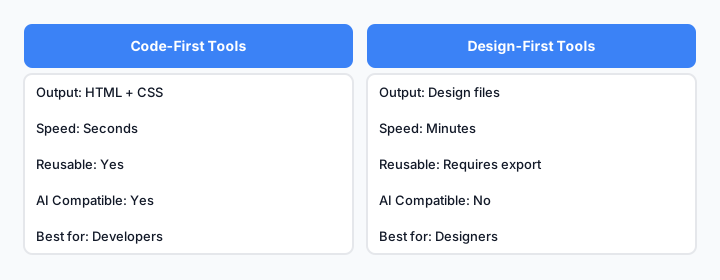
The fundamental difference: design tools prioritize visual output; code-first tools prioritize reusable code.
Design-first tools (Figma, Adobe XD, Sketch):
- Strong for collaboration and design systems
- Output is visual (components, assets, specs)
- Require manual code generation or plugins
- Slower for developers who just need code
Code-first tools (Element Armory, browser DevTools extensions):
- Optimized for speed and code quality
- Output is HTML + CSS (immediately usable)
- No design overhead
- Built for developer workflows
For developers extracting UI from live websites, code-first wins every time. You get usable code in seconds instead of minutes.
Element Armory vs. Traditional Alternatives
Here's how Element Armory compares to the most common alternatives developers actually use:
| Feature | Element Armory | Manual DevTools | Figma Import | Screenshot + Manual Rebuild |
|---|---|---|---|---|
| Speed | 5-10 seconds | 3-5 minutes | 2-3 minutes | 10-20 minutes |
| Code Quality | Clean, computed styles | Scattered, incomplete | Design-focused, not code | Guesswork |
| Reusable Output | Yes (HTML + CSS) | Partial | Requires export | No |
| AI Ready | Yes | No | No | No |
| Learning Curve | None (one click) | Moderate | Steep | High |
| Cost | Free extension | Free | Paid plan | Free |
The key difference: Element Armory captures computed styles, not just what's in the stylesheet. This matters because:
- Styles can come from multiple files
- CSS can be minified or obfuscated
- Inline styles, CSS-in-JS, and utility classes all get resolved
- You get the actual rendered result, not the source
Speed Comparison: Real-World Scenarios
Let's walk through three common tasks:
Scenario 1: Copy a Navbar Component
Using Element Armory:
- Open the extension
- Click the navbar
- Copy HTML + CSS
- Paste into your project
Time: 8 seconds
Using Manual DevTools:
- Open DevTools (F12)
- Inspect the navbar element
- Find all related CSS rules (scattered across multiple files)
- Copy each rule manually
- Reconstruct the HTML structure
- Test and debug
Time: 4-6 minutes
Using Figma:
- Take a screenshot of the navbar
- Upload to Figma
- Trace or recreate the design
- Export as code (if plugin available)
- Clean up the output
Time: 5-8 minutes
Scenario 2: Extract a Pricing Table
Element Armory: 10 seconds (click table, copy)
Manual DevTools: 5-8 minutes (inspect each cell, find styles, rebuild)
Figma: 8-12 minutes (screenshot, import, trace, export)
Scenario 3: Capture a Dashboard Section
Element Armory: 15 seconds (click section, copy)
Manual DevTools: 10-15 minutes (multiple elements, complex layout)
Figma: 15-20 minutes (screenshot, import, recreate layout)
The pattern is clear: code-first capture is 3-10x faster than alternatives.
When to Use Each Tool Type

Choose your tool based on your actual workflow.
Use Element Armory if:
- You're extracting UI from live websites
- You need code, not design files
- You work with AI coding tools (Cursor, Claude)
- You want to build a reusable component library
- Speed matters
Use Figma if:
- You're designing new interfaces
- You need design collaboration
- You're building a design system with stakeholders
- Visual specs and handoff matter more than code
Use Manual DevTools if:
- You only need small CSS tweaks
- You're debugging a specific element
- You're learning how CSS works
Use Screenshot Tools if:
- You're documenting bugs
- You need to share visual feedback
- You're not extracting code
Building Reusable Component Libraries
One of the biggest advantages of code-first capture is reusability. Instead of capturing UI once and throwing it away, you can build a library.
Here's a practical workflow:
- Identify components you use repeatedly (buttons, cards, modals, navbars)
- Capture each one using Element Armory
- Organize them in a folder or snippet manager
- Reuse across projects without rebuilding
This saves hours over time. A developer who captures 20 components and reuses them across 5 projects saves roughly 10-15 hours of manual rebuilding.
Design-first tools can do this too, but they require more setup and maintenance. Code-first is simpler because the output is already code.
Integration With AI Coding Workflows
This is where code-first capture really shines.
If you use Cursor, Claude, or ChatGPT for coding, you can:
- Capture UI from a website
- Paste the HTML + CSS into your AI tool
- Ask it to modify, extend, or rebuild the component
- Get production-ready code back
Example:
"Here's a navbar I captured. Can you make it responsive and add a mobile menu?"
The AI can work with clean, structured code. It can't work with a screenshot.
Design-first tools don't integrate well with AI workflows because they output design specs, not code. You'd have to manually convert the design to code first, which defeats the purpose.
Pricing and Feature Breakdown
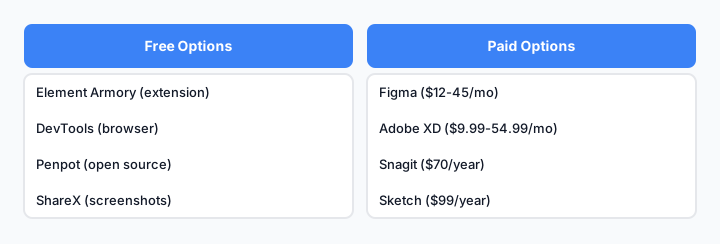
Cost vs. capability for common UI capture approaches.
Element Armory: Free (browser extension)
Manual DevTools: Free (built into browsers)
Figma: Free tier (limited), $12-45/month (teams)
Adobe XD: $9.99-54.99/month
Penpot: Free (open source), paid cloud hosting
Screenshot Tools (Snagit, ShareX): Free to $70/year
For developers, the math is simple: Element Armory is free and faster than paid alternatives. There's no reason to pay for design tools if you only need code.
How to Choose the Right Tool for Your Workflow
Ask yourself these questions:
What's the output I need?
- Code → Element Armory
- Design specs → Figma
- Visual reference → Screenshot tool
How often will I reuse this?
- One-time use → Screenshot tool
- Multiple projects → Element Armory
- Design system → Figma
Do I work with AI tools?
- Yes → Element Armory
- No → Any tool works
How much time do I have?
- Seconds → Element Armory
- Minutes → Figma or DevTools
- Hours → Manual rebuild
Am I working alone or with a team?
- Alone → Element Armory
- Team → Figma (better collaboration)
If you're a developer extracting UI for code reuse or AI workflows, Element Armory wins on speed, cost, and output quality. If you're designing or collaborating with non-developers, Figma is the better choice.
The best tool is the one that matches your actual workflow, not the one with the most features.