
Quick Answer
SaaS UI best practices center on clarity over features. The goal is to show users exactly what they need to accomplish their task without overwhelming them with options. This means ruthless information hierarchy, fast dashboards, intuitive navigation, and accessibility built in from the start. When users can find what they need in seconds and understand what to do next, adoption increases and support costs drop.
Why SaaS UI Design Matters More Than You Think
SaaS products live or die by adoption. A feature-rich product with a confusing interface will lose users to competitors with simpler alternatives. The interface is not decoration-it's the primary tool users interact with every day.
When a user logs into your SaaS product, they're making a split-second judgment: Can I use this? If the answer is no, they'll try your competitor.
The stakes are high because SaaS users are paying for your product. They expect it to work intuitively. They expect to find what they need without hunting through menus. They expect the interface to respect their time.
Good SaaS UI design directly impacts:
- Adoption rates - Users get productive faster
- Support costs - Fewer confused users asking for help
- Retention - Users stay because the product feels effortless
- Feature adoption - Users discover and use advanced features naturally
The Core Principle: Clarity Over Features
The biggest mistake SaaS teams make is treating the UI as a feature showcase. They pack every possible option into the interface because the engineering team built it.
This is backwards.
Your job is to hide complexity, not display it. Users don't want to see all your features. They want to accomplish one task with minimal friction.
The principle: Show only what the user needs right now. Everything else should be one click away, but not visible by default.
This applies to:
- Dashboard widgets - Show the 3 metrics that matter most
- Navigation - Organize by user workflow, not by feature
- Forms - Break long forms into steps
- Settings - Hide advanced options behind a toggle or separate section
When you apply this principle consistently, the interface becomes faster to learn and easier to use.
Information Hierarchy: Show What Users Need First
Information hierarchy is the foundation of clarity. It answers the question: What should the user see first, second, and third?
Most SaaS products fail at this. They show everything equally, which means nothing stands out.
How to build information hierarchy:
Identify the primary action - What is the user trying to do? (e.g., create a campaign, view analytics, manage team members)
Prioritize by frequency and importance - What does the user need to do most often? What has the biggest impact on their success?
Use visual weight - Size, color, and position signal importance. The most important element should be the largest and most prominent.
Group related information - Users scan in patterns. Group similar items together so the eye can move naturally.
Use whitespace - Crowded interfaces feel chaotic. Whitespace makes information digestible.
Example: A project management dashboard should show:
- Active projects (primary)
- Tasks due this week (secondary)
- Team members (tertiary)
- Settings and advanced options (hidden by default)
Not all projects, all tasks, all team members, and all settings at once.
Dashboard Design: The Foundation of SaaS UI
The dashboard is often the first thing users see after login. It sets the tone for the entire product.
A good SaaS dashboard:
- Shows status at a glance - Users understand the current state without reading
- Highlights what needs attention - Alerts and warnings are visible but not overwhelming
- Enables quick actions - Users can take action without navigating away
- Customizable but sensible by default - Power users can rearrange, but new users see a smart default layout

A typical SaaS dashboard hierarchy: overview metrics at the top, actionable items in the middle, detailed data below.
Common dashboard mistakes:
- Too many metrics - Users don't know what to focus on
- Real-time updates that distract - Constant refreshing breaks focus
- No clear call-to-action - Users don't know what to do next
- Identical layouts for all user types - A manager needs different information than a team member
The best dashboards are role-based. An admin sees different information than a regular user. A manager sees team performance; an individual contributor sees their own tasks.
Navigation That Doesn't Confuse
Navigation is invisible when it works. Users don't think about it. They just find what they need.
Navigation fails when:
- Menu items are unclear or use jargon
- The current page isn't highlighted
- Users can't find what they're looking for
- Navigation changes based on context (inconsistent)
Navigation best practices:
- Use clear labels - "Campaigns" not "Initiatives." "Team" not "Org Structure."
- Organize by user workflow - Group items by what users do, not by backend architecture
- Show current location - Always highlight where the user is
- Limit depth - Users should reach any page in 2-3 clicks
- Search as a fallback - If navigation is complex, add search
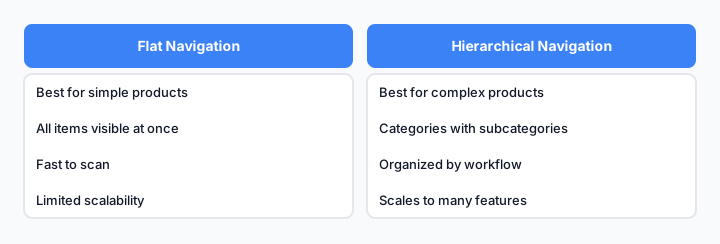
Flat navigation (left) vs. hierarchical navigation (right). Choose based on product complexity.
For complex products, consider progressive disclosure: show main categories, then reveal subcategories on hover or click.
Onboarding: Your First Chance to Set Expectations
Onboarding is where users form their first impression of your product. A good onboarding experience sets users up for success and reduces support burden.
Onboarding should:
- Show, don't tell - Interactive walkthroughs beat long tutorials
- Be skippable - Power users should be able to skip and explore
- Teach by doing - Users learn by completing real tasks, not watching videos
- Celebrate progress - Show users what they've accomplished
- Provide context - Explain why they're doing something, not just how
A common mistake is making onboarding mandatory. Users resent being forced through steps. Instead, make onboarding helpful and optional. Users who want to learn will engage; users who want to explore will skip.
Responsive Design for Every Device
SaaS products are used on phones, tablets, and desktops. Your UI must work on all of them.
Responsive design isn't just about shrinking the desktop layout. It's about rethinking the experience for each device.
Mobile considerations:
- Touch targets should be at least 44x44 pixels
- Navigation should be simplified (hamburger menu or bottom tabs)
- Forms should be single-column
- Avoid hover states (they don't work on touch)
Tablet considerations:
- Use the extra space for side panels or split views
- Navigation can be more visible than on mobile
- Multi-column layouts work well
Desktop considerations:
- Use the full width for complex data
- Side navigation is efficient
- Keyboard shortcuts can speed up power users
Test your product on real devices. Responsive design frameworks help, but they don't catch everything.
Accessibility: Building for All Users
Accessibility isn't a feature. It's a requirement. Users with disabilities are using your product, and they deserve an experience that works.
Core accessibility practices:
- Color contrast - Text should have at least 4.5:1 contrast ratio
- Keyboard navigation - Users should be able to navigate without a mouse
- Alt text - Images should have descriptive alt text
- Form labels - Every input should have a label
- Focus indicators - Users should see where they are when tabbing
- Semantic HTML - Use proper heading hierarchy and semantic elements
Accessibility also benefits everyone. Keyboard shortcuts help power users. Clear labels help users in noisy environments. High contrast helps users in bright sunlight.
Performance: Speed Is Part of Design
A slow interface feels broken. Users will abandon your product if it's sluggish.
Performance is a design problem, not just an engineering problem. Designers should think about:
- Load time - How long does the page take to load?
- Interaction latency - How long does it take for a button click to register?
- Animation smoothness - Do animations feel fluid or janky?
- Data loading - How do you show data while it's loading?
Performance best practices:
- Show loading states - Users should know something is happening
- Lazy load data - Don't load everything at once
- Optimize images - Compress and serve appropriately sized images
- Cache frequently accessed data - Reduce server requests
- Use progressive enhancement - Core functionality works even if JavaScript fails
A dashboard that takes 5 seconds to load will frustrate users. A dashboard that loads in 1 second and shows data progressively feels fast.
Real-World SaaS UI Examples That Work
Slack - Clear navigation, minimal visual clutter, fast interactions. The sidebar shows channels and direct messages. The main area shows conversation. Everything is where you expect it.
Notion - Flexible but sensible defaults. Users can customize their workspace, but new users see a clean, organized layout. The sidebar shows pages; the main area shows content.
Figma - Complex tool, but the UI is intuitive. The toolbar is organized by task. The canvas is the focus. Properties panels appear on demand.
Stripe Dashboard - Shows key metrics at a glance. Navigation is clear. Actions are obvious. The interface respects the user's time.
These products succeed because they prioritize clarity and speed. They don't try to show everything at once. They guide users toward the most important actions.
Common SaaS UI Mistakes to Avoid
| Mistake | Impact | Solution |
|---|---|---|
| Too many options visible | Users feel overwhelmed | Hide advanced options, show defaults |
| Unclear navigation labels | Users can't find what they need | Use clear, user-focused language |
| Slow load times | Users abandon the product | Optimize performance, show loading states |
| No mobile optimization | Mobile users have poor experience | Design for mobile first, then scale up |
| Poor color contrast | Users with vision issues can't read | Test contrast ratios, aim for 4.5:1 minimum |
| Inconsistent interactions | Users have to relearn the UI | Establish patterns and stick to them |
| No feedback on actions | Users don't know if their action worked | Show confirmation messages, loading states |
| Cluttered dashboards | Users don't know what to focus on | Prioritize metrics, use whitespace |
Putting It All Together
SaaS UI design is about respect. Respect for the user's time, attention, and intelligence.
When you design with clarity as the north star, everything else follows:
- Navigation becomes intuitive
- Dashboards become useful
- Onboarding becomes effective
- Performance becomes a priority
- Accessibility becomes natural
The best SaaS products feel effortless. Users don't think about the interface. They just accomplish their goals.
Start by identifying your users' primary task. Design the interface around that task. Hide everything else. Test with real users. Iterate based on feedback.
Clarity over features. Speed over complexity. Control over confusion.
That's SaaS UI design that works.