
Quick Answer
Sending UI to AI automatically means capturing HTML and CSS from live websites and piping that code directly into AI coding tools (Cursor, Claude Code) without manual copy-paste steps. Instead of inspecting elements in DevTools, copying styles, and pasting them into your editor, you use an extension or automation script to extract clean, reusable code and feed it to your AI assistant in one action. This cuts component extraction time from 10-15 minutes down to seconds and lets your AI generate variations, refactor, or build on top of real production UI instantly.
The Manual Workflow Problem: Why Copy-Paste UI Slows Down AI Development
Most developers still extract UI the old way:
- Open DevTools
- Inspect the element
- Copy CSS (scattered across multiple rules)
- Switch to editor
- Paste into a file
- Clean up the code
- Paste into Cursor or Claude
- Ask the AI to refactor or adapt it
This workflow breaks the flow state. You're context-switching between browser, editor, and AI tool. If the CSS is minified or split across multiple files, you're hunting for styles. If you need five components from the same site, you repeat this nine times.
For developers using AI coding tools, this is especially painful. You're paying for AI speed but losing it to manual busywork.
The real cost isn't the 2 minutes per component. It's the cognitive load of switching contexts and the friction that makes you skip reusing good UI altogether.
What Automatic UI Sending Actually Means (And Why It Matters)
Automatic UI sending is a pipeline, not a single tool:
Capture → Clean → Send → Use in AI
When you automate this:
- You click an element on any website
- The extension captures its HTML and computed styles
- The code is formatted and ready to use
- It lands in your AI tool's context automatically (or clipboard, ready to paste)
- Your AI assistant sees production-quality code and can immediately generate variations, refactor for your stack, or build components on top of it
This matters because:
- Speed compounds. If you extract 10 components per week, automation saves 2-3 hours of manual work.
- Quality improves. You're capturing real, production-tested UI instead of rebuilding from memory.
- AI works better. Your AI assistant gets concrete examples to learn from, not vague descriptions.
- Reuse becomes natural. When extraction is frictionless, you actually build a library instead of reinventing components.
How Element Armory Fits Into Your AI Coding Workflow
Element Armory is a Chrome extension that captures HTML and computed CSS from any element on any website. It's built specifically for developers who use AI tools.
Here's how it integrates:
In your browser:
- Click any element
- Instantly see its HTML and all computed styles
- Copy clean, reusable code
In your workflow:
- Paste the code into Cursor or Claude
- Ask your AI to adapt it to your design system
- Ask it to convert it to React, Vue, or your framework
- Ask it to add interactivity or state management
The extension doesn't export to JSX or Tailwind directly (that's what your AI is for). It gives you the raw, production-tested foundation that your AI can then transform.
Why this matters for AI workflows:
When you feed your AI tool real HTML and CSS, it understands the structure, spacing, and visual hierarchy. It can then:
- Refactor for your component library
- Convert to your preferred styling approach
- Add accessibility improvements
- Generate variations for different screen sizes
- Build on top of the pattern
You're not asking the AI to imagine a navbar. You're showing it a real one and asking it to improve it.
Step-by-Step: Capturing UI and Sending It to Cursor or Claude

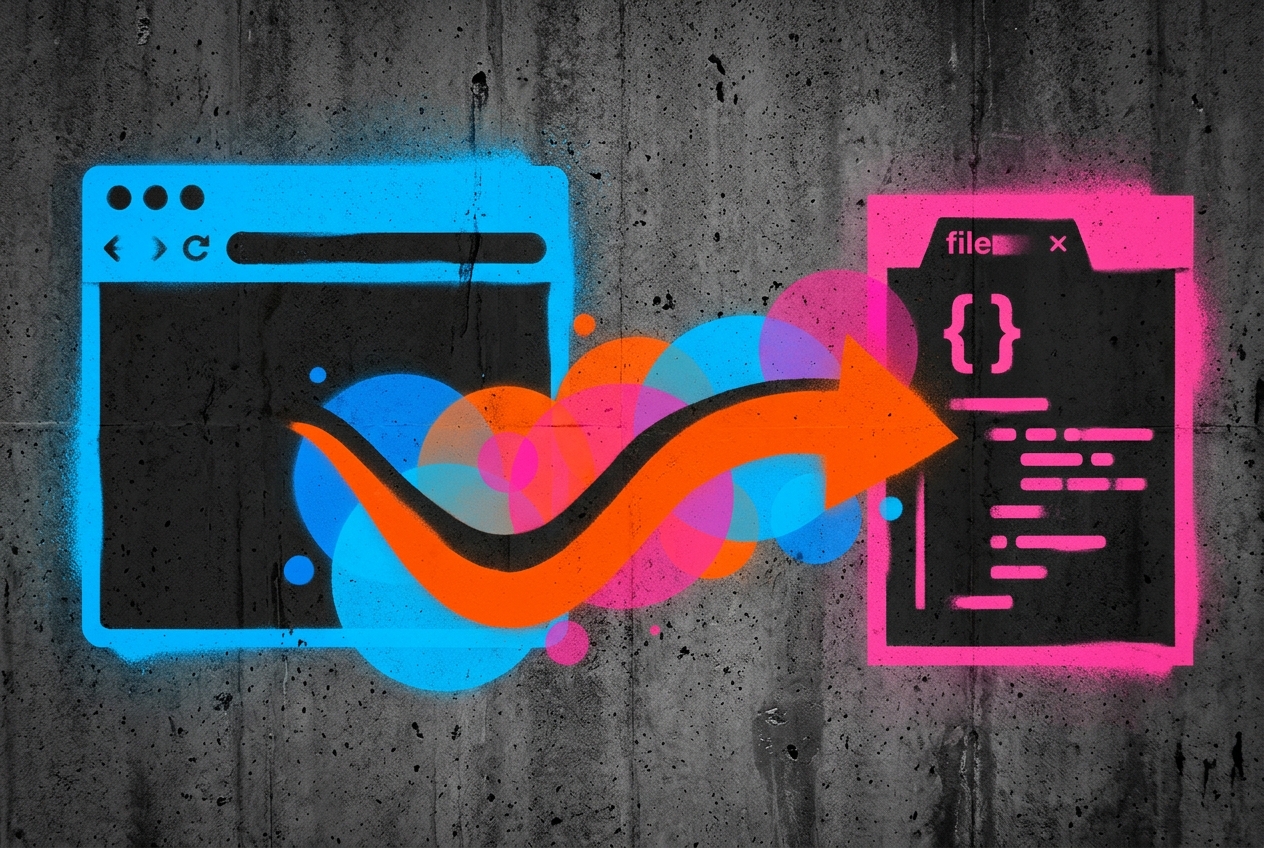
Automated pipeline from live website to AI coding tool.
Step 1: Install Element Armory
Add the extension to Chrome. No configuration needed.
Step 2: Navigate to Any Website
Find a component you want to reuse. Could be a navbar, pricing table, card, button, form, or entire section.
Step 3: Click the Element
Open the Element Armory extension and click the element you want to capture. The extension shows you:
- Clean HTML structure
- All computed CSS styles
- Organized, readable code
Step 4: Copy the Code
Select and copy the HTML and CSS. The code is already formatted and ready to use.
Step 5: Paste Into Your AI Tool
Open Cursor or Claude Code and paste the captured code into the chat or editor context.
Step 6: Ask Your AI to Adapt
Examples:
- "Convert this to a React component with props for title and links"
- "Refactor this to use Tailwind instead of inline styles"
- "Add dark mode support to this navbar"
- "Make this responsive for mobile"
- "Add hover animations to these buttons"
Your AI now has a concrete example to work from, not a description.
Real Workflow Example: From Live Website to AI-Generated Component
Let's say you're building a SaaS dashboard and you want a pricing table like the one on Stripe's website.
Manual approach (old way):
- Open Stripe's pricing page
- Inspect the table in DevTools
- Copy CSS from multiple rules
- Paste into your editor
- Clean up the code
- Manually rebuild it in your framework
- Test and adjust
- Total time: 20-30 minutes
Automated approach (with Element Armory):
- Open Stripe's pricing page
- Click the table with Element Armory
- Copy the captured HTML and CSS
- Paste into Cursor
- Ask: "Convert this to a React component with dynamic pricing data"
- Cursor generates a fully functional component
- Total time: 3-5 minutes
The difference isn't just speed. The AI-generated component is:
- Properly structured
- Accessible (if the original was)
- Responsive (if the original was)
- Ready to integrate with your data
You're not starting from scratch. You're starting from production-tested UI.
Comparing Manual vs Automated UI Capture for AI Tools
| Aspect | Manual DevTools | Element Armory + AI |
|---|---|---|
| Time per component | 10-15 min | 1-2 min |
| Code quality | Varies (depends on your skill) | Production-tested |
| Reusability | Low (usually one-off) | High (clean, formatted code) |
| AI context | Vague description | Concrete example |
| Learning curve | Moderate | Minimal |
| Batch extraction | Tedious | Fast |
| Framework conversion | Manual | AI-assisted |
| Accessibility | Hit or miss | Inherited from source |
Advanced: Chaining UI Capture With MCP Servers for Full Automation
For teams and power users, the next level is Model Context Protocol (MCP) integration.
MCP is a protocol that lets AI tools (Claude, Cursor) connect to external services. You can build or use an MCP server that:
- Listens for UI capture requests
- Automatically extracts HTML and CSS from a URL or element
- Formats the code
- Injects it into your AI's context
- Triggers component generation automatically
Example workflow:
Developer: "Generate a component from https://example.com/pricing"
↓
MCP server captures the pricing table
↓
Claude receives the HTML and CSS in context
↓
Claude generates a React component
↓
Component appears in the editor
This is still emerging, but it's the direction the ecosystem is moving. Element Armory is designed to work with this future.
Why MCP matters:
- No manual copy-paste at all
- AI can request UI captures on demand
- Entire workflows become automated
- Teams can standardize on a single capture tool
Common Mistakes When Automating UI Capture
1. Capturing Minified or Obfuscated Code
Some websites minify CSS heavily or use CSS-in-JS that's hard to read. Element Armory captures computed styles (what the browser actually renders), so you get readable code. But if the original uses complex animations or dynamic styles, you might need to ask your AI to simplify or refactor.
Fix: Always review the captured code. If it looks overly complex, ask your AI to clean it up.
2. Forgetting About Dependencies
A captured component might rely on external libraries (Bootstrap, Material UI, custom icon fonts). When you paste it into your AI tool, mention these dependencies.
Fix: Tell your AI: "This uses Font Awesome icons and Bootstrap. Convert it to use React Icons and Tailwind."
3. Not Capturing Responsive Behavior
If you capture a component at desktop size, you might miss mobile styles. Open DevTools and check the responsive design view before capturing.
Fix: Capture at multiple breakpoints if the component changes significantly.
4. Ignoring Accessibility
Production UI is often accessible (ARIA labels, semantic HTML). When your AI refactors it, remind it to preserve accessibility.
Fix: Ask your AI: "Keep all ARIA labels and semantic HTML when refactoring."
5. Treating Captured Code as Final
Captured code is a starting point, not a finished product. It's optimized for the original site's design system, not yours.
Fix: Always ask your AI to adapt it to your design tokens, spacing scale, and component library.
Integrating UI Automation Into Your Development Pipeline
To make this a real workflow, not just a one-off trick:
1. Create a Capture Hotkey
Set up Element Armory to trigger with a keyboard shortcut. This removes the friction of opening the extension.
2. Build a Component Library Workflow
When you capture a good component:
- Save it to a "Captured Components" folder
- Ask your AI to generate variations (light/dark, sizes, states)
- Add it to your design system
- Document it
Over time, you build a library of production-tested patterns.
3. Use Cursor's Context Window
In Cursor, you can add files to the context. Create a "UI Patterns" folder with captured components. Your AI can reference them when generating new components.
4. Automate With Scripts
For teams, write a simple script that:
- Takes a URL and element selector
- Calls Element Armory's API (if available)
- Formats the code
- Commits it to a components repo
This turns UI capture into a CI/CD step.
5. Document Your Workflow
Share this with your team:
- "When building a new feature, check our captured components first"
- "If you find good UI on a competitor's site, capture it and ask Claude to adapt it"
- "All captured components go through AI refactoring before adding to the library"
The Future: UI Capture as Infrastructure
Right now, UI capture is a manual tool. In the next 12-18 months, expect:
- Native browser APIs for accessing computed styles (already coming)
- MCP servers that make capture automatic
- AI agents that can browse and capture UI without human intervention
- Design system integration where captured code automatically converts to your tokens
Element Armory is built for this future. It's not just a copy-paste tool. It's the foundation for automated UI workflows.
For now, the win is simple: Stop manually copying CSS. Let your AI do the refactoring. Build faster.
Start Automating Today
The best time to start automating UI capture is now. Even without MCP or advanced workflows, capturing UI and feeding it to Cursor or Claude saves hours per week.
Then pick one component from a site you admire. Capture it. Paste it into Claude. Ask it to convert it to React. See how fast you can go.
That's the workflow. Everything else is optimization.